


Gallery
4.27.29K Reviews
App Specs
- Version
- 1.9.4.930218541 release
- Updated On
- License
- Free
- Downloads
- 1,000,000,000+
- Developer
- Google LLC
- Categories
- Photography
- Platform
- Android, iOS
Screenshots
 Analysis by AppCompare
When I reach for a photo gallery, I want to find one picture quickly, check a video, and get back to what I was doing—not spend time learning a complicated system. That simple job is where Gallery makes sense. It is a photography app from Google LLC, and I see it as a straightforward place to browse and manage the images already on a device rather than a full photo-editing studio.
Getting started can still bring a small moment of confusion: a gallery can only show the media it can access, and a screen that looks empty does not automatically mean your pictures have vanished. I’d first check that I’m looking in the right place and that the images are actually stored on the device. That distinction matters if you usually view pictures through a separate cloud-backed service or another app. Gallery is most useful when I want a direct, familiar view of local photos and videos without turning every browse into a search through unrelated screens.
Making Gallery work smoothly day to day
I find Gallery works best when I treat it as a quick way to review and lightly tidy the pictures already on my phone, rather than as the one place responsible for every copy. In this section, I’ll focus on small habits that make everyday browsing less frustrating—especially checking where an image lives before changing anything. That distinction also helps when deciding whether the next step belongs in Gallery or elsewhere.
Guides and Analysis on Gallery
Where a gallery can feel confusing
The first thing I’d keep in mind is that “my photo is missing” can mean several different things. It may be in another folder, still held in a different app, or simply not where I expected it to be. Rather than repeatedly reopening the same view, I’d check the relevant folder and use the app’s browsing and search options to narrow things down. Search can help with dates, locations, or content types, but it works best as a shortcut after I have a reasonable idea of what I’m trying to find.
That is a useful difference between a gallery and a dedicated cloud photo library. A cloud service may be the better place to look when I expect an image to be backed up or available across devices; Gallery is a more natural choice when I want to browse what is on the phone. If a photo appears in one app but not the other, I would check where it is stored before assuming either app has lost it.
A sensible setup check before blaming the app
If the gallery opens but does not show the picture I want, I’d begin with a few basic checks: confirm that I’m browsing the correct folder, close and reopen the app, and make sure the media is present on the device. Those steps are deliberately simple. They can separate a display or navigation mix-up from a problem with the file itself, without risking a picture by moving or deleting it in a hurry.
I’d also avoid treating every delay as a sign that the app is broken. A large collection can take a moment to browse, and a device that is busy may make any media app feel slower. For a quick test, I’d open a recent photo and a short video, then compare that with an older item. If only one file behaves oddly, the issue may be limited to that item rather than the whole gallery.
Worth Reading Before You Choose

Ludo King Makes the Most of the Minutes Between Plans

Baby Panda World Brings Quick Play to Modern Phones, but Its Game Library Feels Busy

ESPN’s Live Game View Makes Following Close Games Easier

QuizzLand Review: A Good Fit for Short Trivia Breaks, Not Every Player

Basketball Stars: Multiplayer Is Fast, but Can It Recover When Matches Go Wrong?

WEBTOON Turns Phone Updates Into a Better Reading Routine
Recovering a calm photo workflow
One practical habit is to use search for retrieval and browsing for review. When I need a particular image, I can narrow the collection by the details I remember; when I’m sorting out a batch from a day out, browsing gives me the broader context. After choosing a photo, the basic editing tools are handy for a crop or a quick adjustment, while a slideshow suits a relaxed look back at a set of memories. I wouldn’t use either as a substitute for a dedicated editor or a deliberate backup routine.
For example, after taking pictures at a family gathering, I might search for the relevant date, skim the results, make a small crop to improve one shot, and then show several images in a slideshow. That keeps the job in one simple flow. If I’m preparing a polished album or need detailed edits, I’d move to a specialist tool instead of fighting the limits of a lightweight gallery.
When the problem may be elsewhere
A gallery can display and help organize media, but it cannot make an image appear on a device if that image is stored somewhere else or is no longer available there. When a picture is missing, I’d check the app or storage location where I normally keep it, and avoid deleting or relocating files until I know which copy I’m handling. This is especially important when several photo apps show overlapping collections: the same picture may be visible through different routes without those routes representing the same storage location.
Likewise, an app that feels slow during one session may be competing with other work on the device. I’d close and reopen it, try again with a small set of recent media, and see whether the behavior persists. If the difficulty follows one file, one folder, or one device-wide slowdown, that clue is more useful than repeatedly changing gallery settings at random.
Who will appreciate this kind of gallery
I think Gallery suits people who want a low-fuss way to look through everyday photos and videos, make quick touch-ups, and revisit memories without needing a complicated editing workflow. It is also a sensible option for someone who prefers a familiar gallery view over a feature-heavy photo suite. The app is free, rated for Everyone, and has a 4.2 average from around 602,000 ratings, which gives new users a broad sense of its standing without telling them whether it fits their own habits.
I would look elsewhere if my main goal were advanced retouching, elaborate image projects, or managing a carefully curated library across several devices. A specialist editor gives more room for detailed adjustments; a cloud-focused photo service may be a better match for syncing and backup workflows. Those are different jobs, and choosing the right tool is more useful than expecting one basic gallery to do everything.
What to expect from the app itself
Gallery has been available since July 23, 2019, and its current version is 1.9.3.913579239 release, with Android 8.0 as the minimum operating system. It has passed one billion installs, a sign that it is widely used, though popularity alone does not guarantee the same experience on every device. I’d still judge it by the everyday basics that matter to me: whether I can locate my media, open it reliably, and make a quick edit without adding friction.
Google LLC’s app keeps its appeal grounded in ordinary tasks rather than demanding that I rebuild how I handle photos. The useful trade-off is clear: it can make browsing and simple touch-ups convenient, but it is not a replacement for an editing specialist or a separate plan for keeping important pictures safe. Knowing that boundary helps me use it for what it does well and avoid expecting it to solve storage or backup problems by itself.
Ever find yourself scrolling through a sea of photos and wondering, “There’s gotta be an easier way to organize all of this?” Well, let me introduce you to the Gallery app, your soon-to-be best friend for managing photos. I’ve had my fair share of photo management apps, but this one really caught my eye (pun intended). Let’s dive into what makes it stand out.
First Impressions
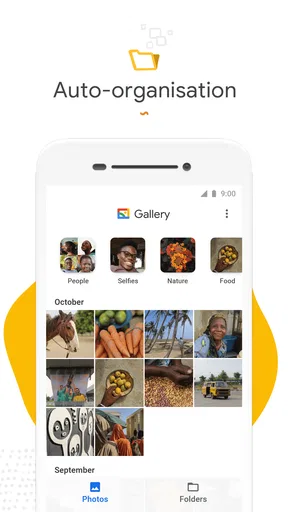
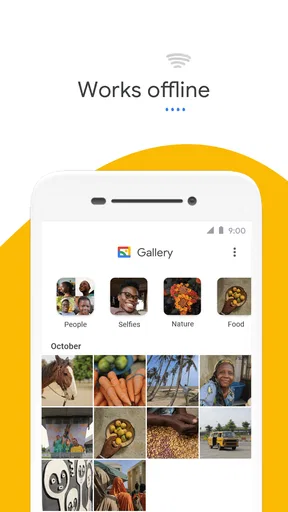
Right from the get-go, the Gallery app impresses with its clean and intuitive interface. It’s like walking into a well-organized digital library. The home screen neatly categorizes your photos and videos, making navigation a breeze. You don’t need to be a tech wizard to figure it out; it’s super user-friendly.
Features That Shine
What’s a photo app without some cool features, right? Here’s where the Gallery app really shines. First off, the search functionality is incredibly robust. You can search for photos by date, location, or even the type of content. It’s almost like it reads your mind.
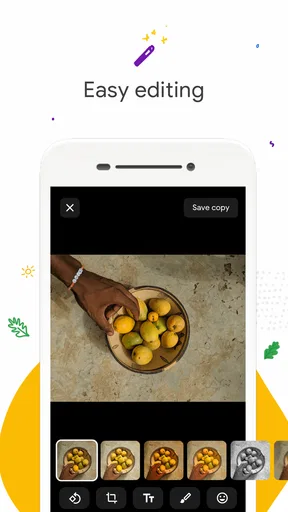
And let’s talk about editing tools. They’re basic but effective—think cropping, filters, and adjustment sliders. Perfect for quick fixes before sharing on social media. There’s also a handy slideshow feature, which I found perfect for reliving vacation memories without lifting a finger.
Privacy and Security
In today’s world, privacy matters. The app offers a secure vault for your more private photos and videos. It feels good knowing that your personal content is safe from prying eyes. You can lock it with a password, making sure only you have access.
Performance and Speed
Now, let’s talk speed. Nobody likes laggy apps, and thankfully, the Gallery app is pretty snappy. Whether you’re flipping through hundreds of photos or performing a quick edit, it handles tasks with ease. It’s optimized to work smoothly on both Android and iOS, which is a huge plus.
What Could Be Better?
No app is perfect, and while the Gallery app is stellar, there are a couple of areas for improvement. For instance, while the editing tools are great for basics, I found myself wanting more advanced options. If you’re a photo-editing enthusiast, this might be a bit limiting.
Another thing to note is the occasional ad pop-up in the free version. They’re not overly intrusive, but for a cleaner experience, the premium version is the way to go.
Final Thoughts
So, is the Gallery app worth downloading? Absolutely. It’s a fantastic choice for anyone looking to organize their photos without hassle. Its intuitive design, robust features, and focus on privacy make it a must-have. Sure, there are a couple of minor hiccups, but they don’t overshadow the app’s overall performance.
In a world where we’re constantly snapping photos, having a reliable app to manage them is essential. The Gallery app not only meets expectations but often exceeds them. So go ahead, give it a whirl, and prepare to have your photo management game elevated.
Pros
- User-friendly interface for easy navigation.
- Supports a wide range of image formats.
- Efficient photo organization with albums.
- Secure backup options for data safety.
- Quick editing tools for on-the-go fixes.
Cons
- Lacks advanced editing features.
- In-app ads can be distracting.
- Limited cloud storage options.
- No direct social media integration.
- Occasional lag with large photo libraries.
FAQs for Gallery
What features does the Gallery app offer for photo organization?
The Gallery app provides a range of features to help organize your photos efficiently. It includes options for creating albums, tagging images, and sorting them by date or location. Additionally, the app offers smart search capabilities and facial recognition, making it easier to find specific photos quickly.
Can I edit photos directly within the Gallery app?
Yes, the Gallery app offers basic photo editing tools. Users can crop, rotate, and adjust brightness and contrast directly within the app. It also includes filters and effects to enhance your images. However, for more advanced editing, you may need a dedicated photo editing app.
Does the Gallery app support cloud backup and synchronization?
The Gallery app often includes support for cloud backup, allowing users to sync their photos with services like Google Photos or iCloud. This ensures your photos are safely stored and accessible across multiple devices. It’s important to check if your specific version of the app supports these cloud services.
Is the Gallery app secure for storing personal photos?
The Gallery app typically provides security features such as password protection and encryption to keep your photos safe. Some versions even offer a 'secure folder' option for sensitive images. However, it's crucial to keep your app updated and use additional security measures, like device encryption, for optimal protection.
How does the Gallery app handle videos?
In addition to photos, the Gallery app supports video playback and organization. Users can create video albums and sort them just like photos. The app also allows basic editing like trimming and adding filters. However, for more comprehensive video editing, a separate video editor app may be necessary.


